Streaming on Twitch has quickly become one of the most exciting ways for gamers and creators to connect with their audiences. Whether you’re playing competitive eSports, showcasing creative content, or just chatting with fans, engagement is the heartbeat of Twitch. One of the best ways to keep that connection strong while you play is by adding a Twitch Chat Overlay directly into your game.
This feature allows streamers to see and respond to live chat messages in real time without having to switch between screens. If you’ve ever found yourself missing important comments or struggling to keep up with your community during intense gameplay, a Twitch Chat Overlay is the perfect solution. In this guide, we’ll break down everything you need to know—from what it is, why it’s useful, and how you can set it up with ease.
What is a Twitch Chat Overlay?
A Twitch Chat Overlay is a transparent window or widget that displays your chat directly on top of your game screen. Instead of glancing at a second monitor or tabbing out, you can see the chat flow seamlessly while you focus on gameplay.
This tool is especially popular with:
-
Single-monitor streamers who can’t afford to constantly switch windows.
-
Highly interactive streamers who want to engage with viewers in real time.
-
Competitive players who need to stay focused on the game but still acknowledge their audience.
In short, it’s about efficiency and engagement rolled into one.
Why Add a Twitch Chat Overlay in Your Game?
-
Better Audience Interaction
Streamers thrive on interaction. Responding quickly to questions, jokes, or cheers keeps the energy high. An overlay helps you acknowledge your viewers instantly, showing them they matter. -
Professionalism
Audiences enjoy polished streams. Seeing you balance gameplay with chat responsiveness builds a reputation for professionalism and dedication. -
Convenience
No more splitting attention between monitors or losing track of what’s happening in the chat. The overlay puts everything where you need it—on screen. -
Engagement Boost
When viewers feel heard, they’re more likely to chat, subscribe, and return to your channel. Chat overlays encourage this positive cycle.
How to Add Twitch Chat Overlay in the Game
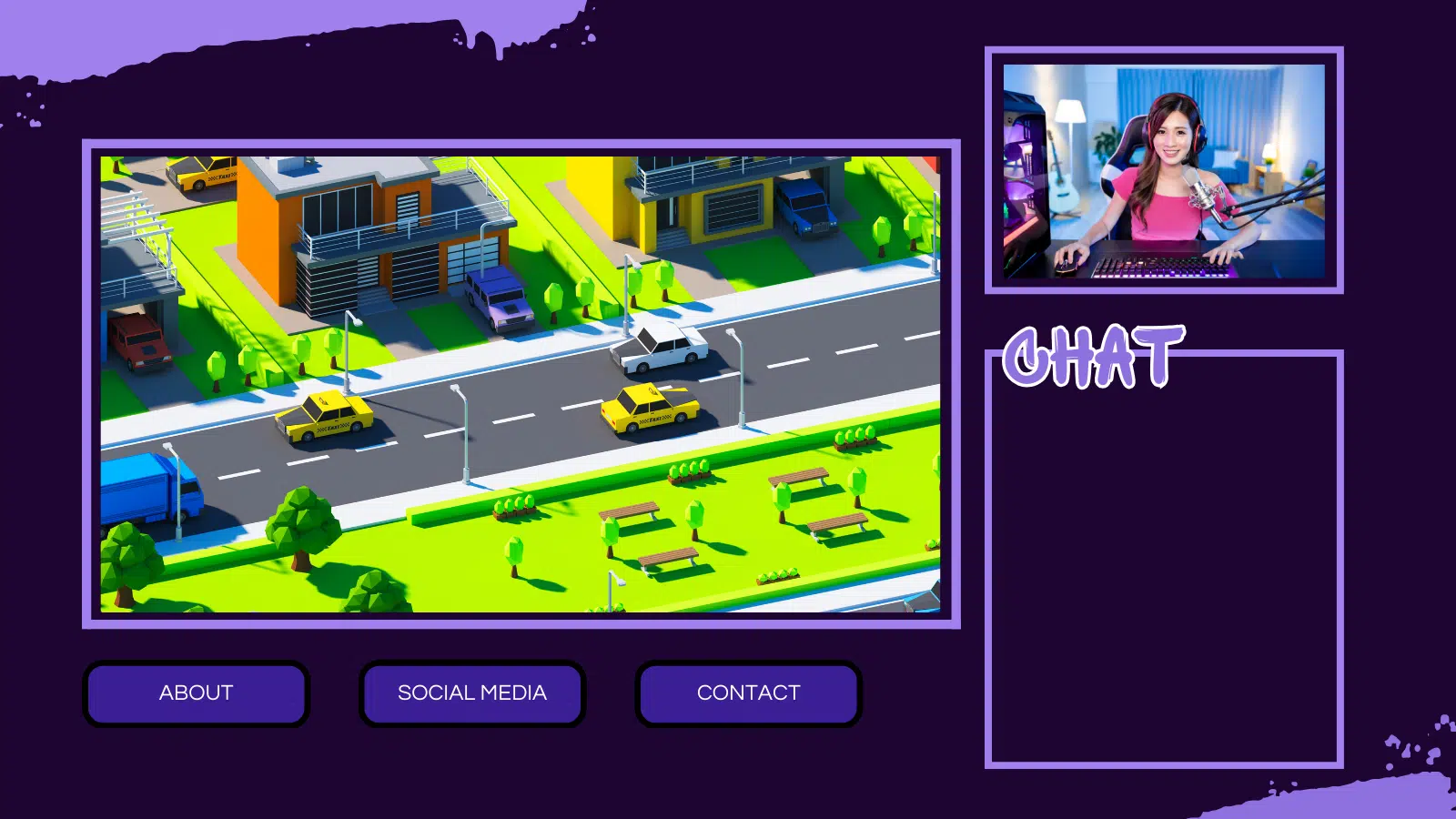
There are multiple methods to set up a Twitch Chat Overlay, ranging from broadcasting software tools to third-party apps. Here’s a step-by-step overview of the most popular approaches:
Method 1: Using OBS Studio with Browser Source
OBS Studio is one of the most popular free tools for streamers. With its customization options, you can easily add a Twitch chat overlay.
-
Install OBS Studio
Download it from obsproject.com. -
Set Up Twitch Chat Box
-
Log into your Twitch account.
-
Visit a service like StreamElements or Streamlabs, which both offer customizable chat boxes.
-
-
Generate a Chat Widget URL
-
In StreamElements or Streamlabs, create a new widget.
-
Customize fonts, colors, and size.
-
Copy the unique widget URL provided.
-
-
Add to OBS
-
Open OBS Studio.
-
Add a Browser Source and paste the URL.
-
Adjust positioning and scaling so the chat doesn’t cover important parts of your gameplay.
-
Now, when you stream, the chat overlay appears directly on your video feed.
Method 2: In-Game Overlay with Streamlabs
If you prefer not to have the chat visible to viewers but only to yourself:
-
Install Streamlabs Desktop.
-
Enable the in-game overlay feature.
-
Log in to Twitch and adjust where the overlay sits on your game screen.
This way, you see the chat while playing, but your viewers don’t see the floating text—perfect if you want immersion for them and convenience for you.
Method 3: Third-Party Applications (like Overwolf or KapChat)
Apps like Overwolf provide customizable in-game overlays that integrate seamlessly with Twitch.
-
Download Overwolf and install the Twitch Chat overlay extension.
-
Position it on your game screen.
-
Tweak opacity and font for comfortable readability.
KapChat, provided by NightDev, is another fan-favorite. It works similarly to StreamElements but is lightweight and simple to add.
Method 4: Using Browser Extensions
For Chrome or Firefox users, browser add-ons like BetterTTV (BTTV) or FrankerFaceZ can extend chat features. While these aren’t in-game overlays directly, they improve chat visibility and customization for second-monitor setups.
Tips for a Great Chat Overlay Setup
-
Keep it Minimal
Avoid covering essential gameplay HUD elements. Place chat in corners or areas of less activity. -
Transparency is Key
Adjust opacity so you can read text but still see the game beneath. -
Font Size Matters
Make sure the text is readable without straining your eyes. -
Test Before Going Live
Run a test stream or private recording to ensure chat placement doesn’t obstruct gameplay. -
Adapt for Your Audience
Some viewers enjoy seeing the chat on-screen, while others prefer a cleaner look. Consider polling your audience to determine which method best suits your style.
Future of Twitch Chat Overlays
As streaming technology continues to evolve rapidly, overlays are likely to become increasingly smarter and more customizable. Expect features like AI-powered moderation, theme-based chat skins, and cross-platform overlays connecting Twitch with YouTube or Kick chats simultaneously.
The goal is simple: keeping interaction fluid, fun, and frictionless for both streamer and audience.
Conclusion
A Twitch Chat Overlay is more than a convenience—it’s a bridge between you and your audience. By integrating chat directly into your gameplay, you’ll not only enhance your responsiveness but also create a professional, engaging atmosphere that keeps viewers coming back.
Whether you choose OBS Studio, Streamlabs, Overwolf, or KapChat, the setup process is straightforward and the benefits are enormous. As you continue streaming, experiment with styles and placements until you find the perfect balance between immersion and interaction.
With the right overlay, your gameplay will remain sharp, your viewers will feel connected, and your Twitch channel will shine brighter than ever. So go ahead—add that chat overlay, and take your streaming experience to the next level!